Free Up Space in Windows 11/10 for Faster PC Performance
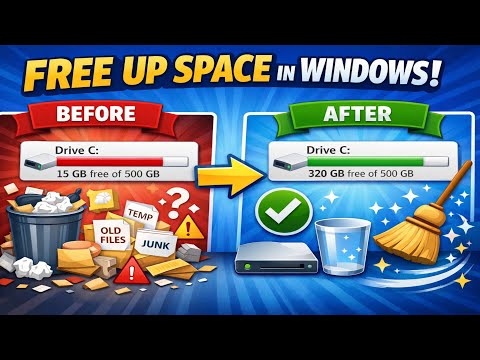
Free Up Space in Windows 11/10 for Faster PC Performance
In this article, we will show you how to free up space in Windows 11/10 and improve your PC's performance.
The first step is to check your disk usage. You can do this by pressing the Windows key + E to open File Explorer, then navigating to This PC or Computer. Look for the drive with the largest amount of used space and right-click on it. Select Properties and then click on the Disk Cleanup button.
This will open the Disk Cleanup tool, which will scan your drive for temporary files, system files, and other items that you can safely delete. Select the items you want to delete and click OK to confirm.
Next, you can try deleting any unnecessary files and programs. Open the Settings app and navigate to System > Storage. Look for any large files or programs that you no longer need and delete them.
Another way to free up space is to use the Storage Sense feature. This feature will automatically delete temporary files and other items that you don't need. To enable Storage Sense, open the Settings app and navigate to System > Storage. Toggle the switch next to Storage Sense to turn it on.
Finally, you can try uninstalling any programs that you no longer use. Open the Control Panel and navigate to Programs and Features. Look for any programs that you no longer need and click on the Uninstall button to remove them.


Comments
Post a Comment