12 Useful Windows RUN Commands Every User Should Know
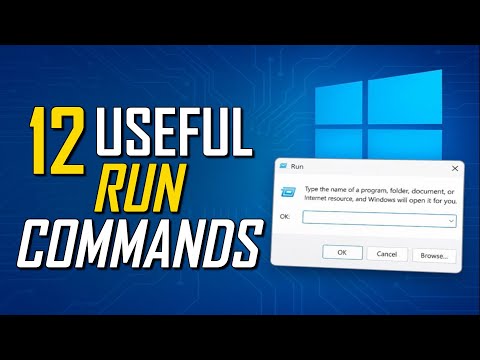
Windows RUN Commands You Need to Know
Are you tired of digging through menus to find the settings you need? Windows RUN commands can save you time and effort. In this article, we'll cover 12 essential RUN commands every Windows user should know.
Introduction to Windows RUN Commands
Windows RUN commands allow you to access various system settings and tools directly from the keyboard. To use RUN commands, press the Windows key + R on your keyboard. This will open the RUN dialog box where you can type in the command you need.
12 Useful Windows RUN Commands
Here are the 12 Windows RUN commands you should know:
- WIN + R: Opens the RUN dialog box
- msconfig: Opens the System Configuration utility
- services.msc: Opens the Services console
- taskschd.msc: Opens the Task Scheduler console
- devmgmt.msc: Opens the Device Manager
- dsa.msc: Opens the Active Directory Users and Computers console
- gpedit.msc: Opens the Local Group Policy Editor
- regedit: Opens the Registry Editor
- systempropertiesadvanced: Opens the System Properties dialog box
- sysdm.cpl: Opens the System Properties dialog box
- control: Opens the Control Panel
- cmd: Opens the Command Prompt
⚠️ Warning: Be careful when editing the Registry, as incorrect changes can cause system instability. Make sure to backup your system before editing the Registry.
Using RUN Commands Effectively
To use RUN commands effectively, follow these tips:
- Use the Windows key + R to open the RUN dialog box
- Start typing the command you need, and press Enter to execute it
- Use the Tab key to navigate through the command options
- Use the Shift + F10 key to access the context menu
⚠️ Warning: Some RUN commands may require administrative privileges to work correctly. Make sure to run the Command Prompt or Registry Editor as an administrator to avoid any issues.
Conclusion
Windows RUN commands can save you time and effort when working with your system. By knowing these 12 essential RUN commands, you'll be able to access various system settings and tools directly from the keyboard. Remember to use the RUN commands effectively by following the tips provided in this article.
At Field and Rural Tech Services, we're committed to providing you with the best Windows tutorials and guides. Check out our website for more Windows tutorials and tips on how to get the most out of your Windows system.
Let us know if this helped! Share your thoughts and questions in the comments below.


Comments
Post a Comment